
Like many people I sometimes run out of disk space, and recently macOS kept giving disk space warnings as I installed software on a VM. Yet I was puzzled how the VM could possibly use so much space.
I wanted to shrink the disk space my VM was using, and ChatGPT’s instructions were wrong. Here is what worked. This is half for my own notes and half to share in case others find it useful.
(Context: this is a dev VM. I had two minimal installs of Delphi, a minimal Visual Studio, VSCode, and the latest Water and Elements of course since those are what I mainly use today. Yet — this is not a vast amount of software — it took up 256GB with a hundred GB or more of free space showing, which I needed instead on the host machine. I use Parallels to run Windows 11 ARM on macOS.)
Wrong instructions
I had over a hundred GB free on the VM according to the stats for C: in My Computer. Since Parallels uses sparse disk files, why was this space being taken?
ChatGPT assured me that running a Parallels reclaim disk space would help (it didn’t: 900MB saved, only.) It then suggested running SysInternal’s sdelete to zero out disk space, allowing Parallels to reclaim disk space. (It didn’t.) It then told me this was to be expected, that the blocks were marked as used, that APFS could not reclaim anything on the host system, and suggested cloning the VM to get a minimal copy, and that ‘You won’t get meaningfully smaller without reinstalling Windows’.
It was wrong.
Right steps
The issue was not (only) zeroed or unused disk space. The issue was that Windows had set up a recovery partition at the end of the disk:
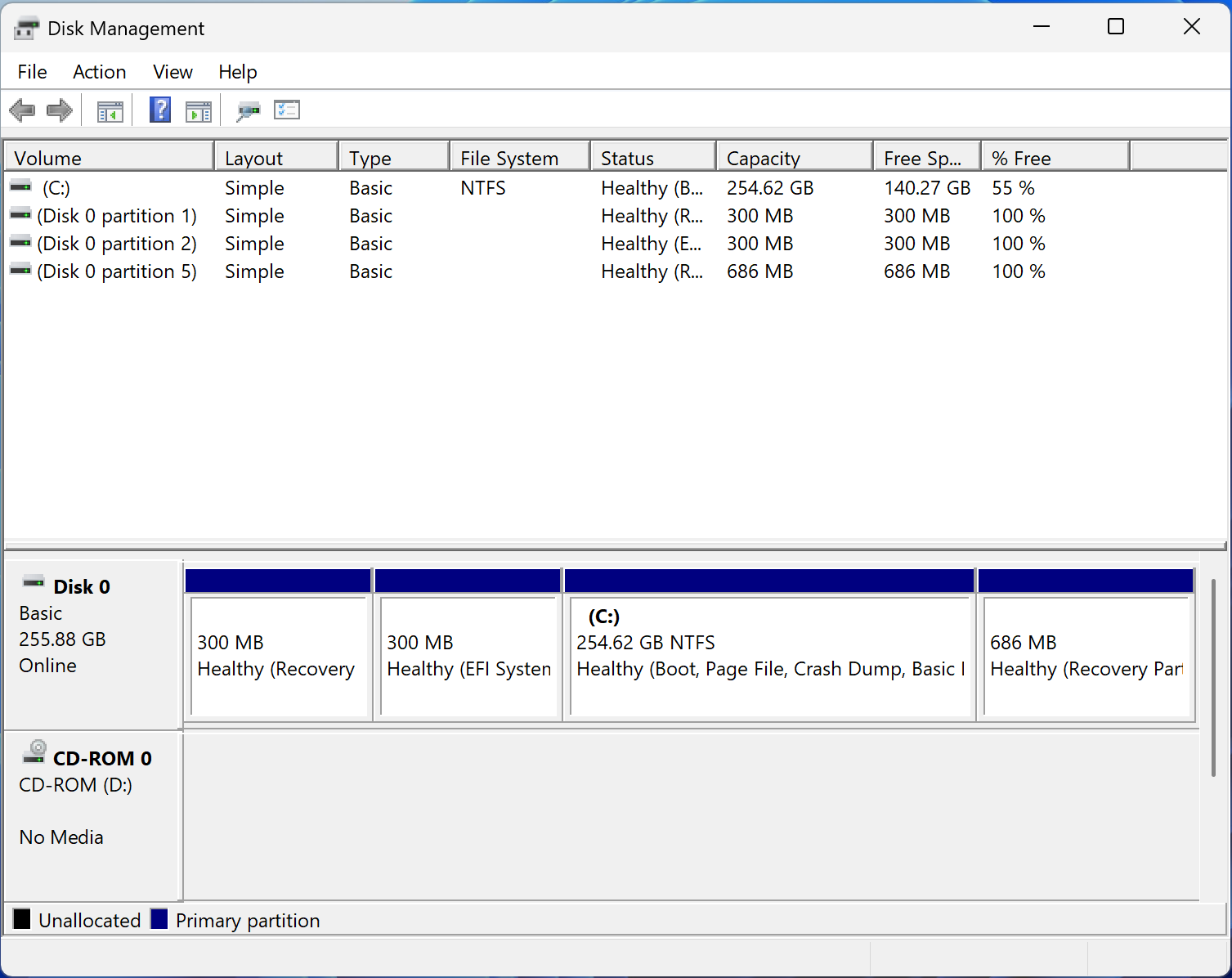
That 686MB partition at the end is used for recovery and reset of Windows. It is twice the size of my first recovery partition, the 300MB one at the start of the disk.
This meant the disk was used at the end, and I suspect meant the ‘sparse’ disk was fully allocated on the host VM’s drive. It also meant Parallels would not recover the empty space, and not allow me to resize the VM disk smaller. I wanted it to do both.
I reasoned that, for a virtual machine I used for coding, which I can recreate any time, I do not need the ability to recover or reset Windows. If you do — and if you have any important data on your VM — do not follow the below instructions. Your ability to recover Windows, or any damage to data on your VM, is entirely in your hands and is your responsibility. I am sharing only what worked for me.
My steps (you will need to run every console command except sdelete in an Administrator rights terminal):
- Verify the recovery agent is using that partition:
reagentc /info
This prints, among lots of other info,Windows RE location: \\?\GLOBALROOT\device\harddisk0\partition5\Recovery\WindowsRE
and that partition 5 matches the 686MB one I need to delete. - Disable the Windows recovery agent:
reagentc /disable
and then check it is disabled:
reagentc /info
This prints, ‘Windows RE status: Disabled’. Now it is not being used. - Delete the partition. Disk Manager won’t let you do this even if it is not being used, even if run as admin. You need to do this on the command line. You will need to adjust the below steps to match your VM disks and partitions:
diskpart— to run the disk partition manager. This has an interaction model where you select (‘focus’ in the docs, linked just now) what you want to work on, so commands don’t specify what is worked on, but you select something first. Interestingly, this may make it less like English grammatical construction as perhaps expected in a text mode UI, but more like a GUI in interaction model.> list disk— to list the disks; I have only 1> select disk 0— because I had only one disk, disk 0. Now I needed to select the partition on that disk:> list partition— this listed several, of which partition 5 was the one I wanted. Be very careful here.> select partition 5> delete partition override— and it’s gone. I repeat: be very, very careful and the results of this are your responsibility.
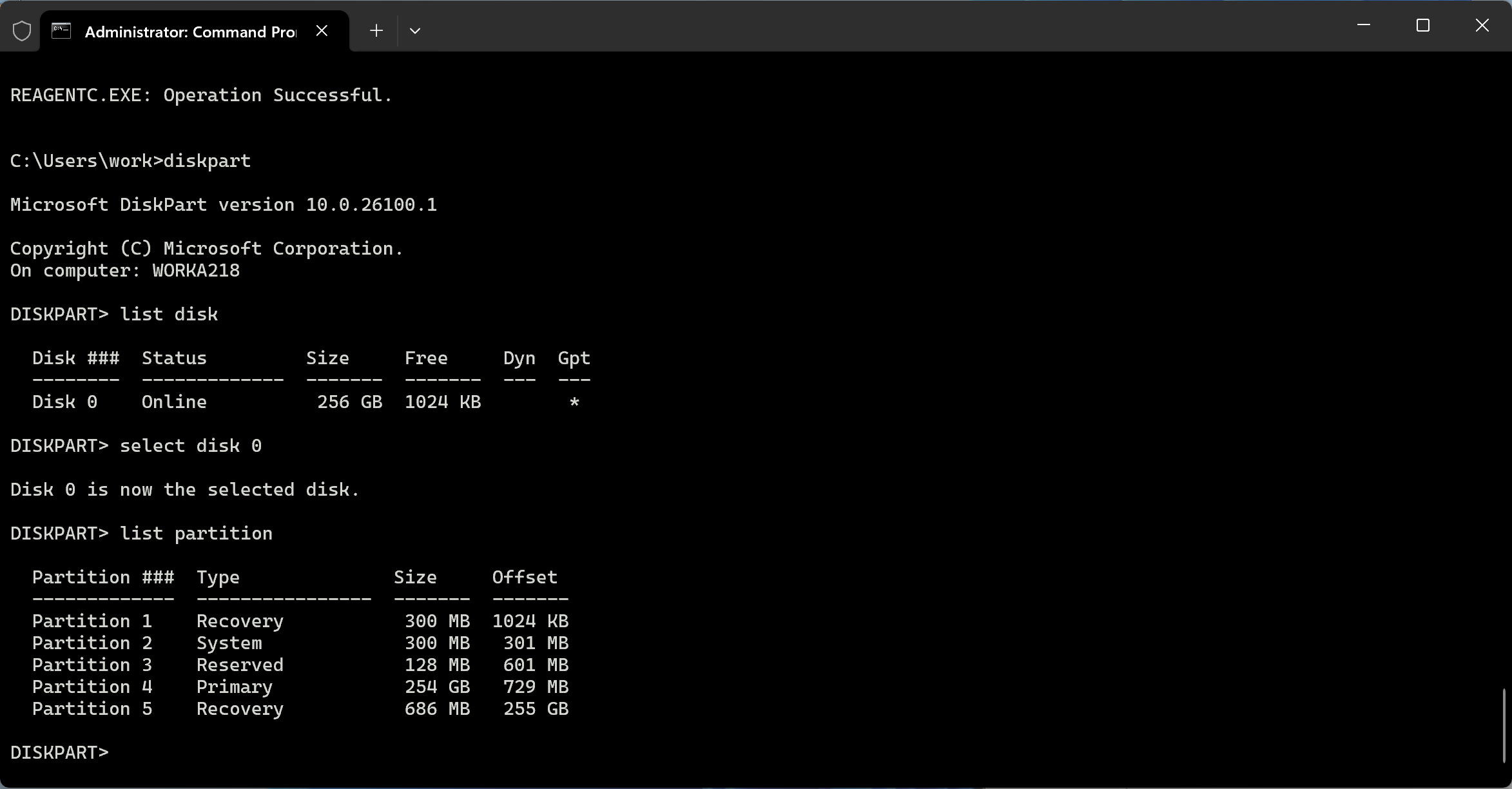
- Back in Disk Manager, I could now extend C: to take up the full space. (Right-click the partition, and choose Extend Volume.) I did so.
- Used
defragto move all files to the start of the partition:
defrag c: /x /v
This is the first time I recall using a defragmenter tool since the very early 2000s, and I was sad to see the Windows UI utility was gone. I used to enjoy seeing the blocks move! - I then zeroed all empty space using SysInternal’s sdelete:
sdelete64a -z c:
According to sdelete’s help, this is recommended for or useful for VMs! Excellent. That said, I don’t know if this truly was necessary but it makes intuitive sense to ensure the space is clear before trying to shrink, so Parallels and the host OS know the space is truly unused. While I would think that Parallels can handle the disk image, regardless of what is located where, ChatGPT — unreliable so far — was full of warnings about APFS space recognition. - Shut down the VM
- Rebooted to test. Shut it down again.
- In Parallels, shrunk the disk by 50GB
- macOS reported 25GB extra free. This does not match. Why? I don’t know. But at least I have more space!
- Started the VM to check.
Partway through this, I recalled I had had this problem before: a partition at the end of the disk preventing disk resizing, possibly also while trying to get more free VM host disk space. I had forgotten. I hope next time I will remember (thus this blog) or that if you have a similar issue, this will help you (thus this blog.)
Leave a Reply